
Every iOS app has a keyword field in App Store Connect. People never see it, but Apple's search guidance says keywords "help determine where your app appears in search results". The App Store keyword field is short, and it is easy to waste part of it. This guide covers what Apple's documentation says about the field, the common ways characters get wasted, and a step-by-step method to fill it. Every Apple rule quoted here was checked against Apple's pages on 1 November 2026.
What Apple says about the App Store keyword field
Apple covers the field in two places: its product page guidance and its App Store search guidance. In short:
- The limit is 100 characters in total. Separate terms with commas and no spaces. Spaces are fine inside a phrase; Apple's own example is
Property,House,Real Estate. - Don't repeat words from your app name, subtitle or category. The search guidance says this directly.
- Don't waste characters on:
- plurals of words you already have (Apple says "climbs" and "climb" are considered duplicates)
- generic terms such as "app" or "game", or the names of categories
- filler words such as "the" and "to"
- special characters such as # or @, unless they are part of your brand
- Don't use at all:
- unauthorized trademarks, celebrity names and other protected words
- terms that aren't relevant to the app
- competing app names
- inappropriate, offensive or objectionable terms
Apple notes that improper use of keywords is a common reason for App Store rejections.
- Promotional text doesn't affect search ranking, so Apple says not to use it to display keywords. Promotional text can be up to 170 characters and can be changed without submitting a new version.
- Localize keywords per market. Apple suggests tailoring your keywords to each market you offer the app in. Our guide to localizing App Store keywords covers how.
Apple also describes the trade-off. Popular, functional terms such as "jobs" or "social" "may drive a lot of traffic, but are highly competitive", especially for newer or smaller apps. Less common terms drive less traffic but face less competition.
Characters or bytes?
The product page guidance gives the limit as 100 characters. The Keywords entry in App Store Connect Help describes it as "up to 100 bytes of content", asks for keywords longer than two characters, and adds that your app is already searchable by its app name and company name, so you shouldn't repeat those. Apple doesn't say how the bytes are counted. If you write keywords with accents or in a non-Latin script, trust the length App Store Connect accepts rather than a plain character count.
Where the keyword field fits
Apple's search guidance says text relevance comes from matches in your app's title, subtitle, keywords and primary category, alongside user behavior such as downloads, ratings and reviews. Three of those text fields are yours to write:
| Field | Limit | Visible to users? |
|---|---|---|
| App name | 30 characters | Yes |
| Subtitle | 30 characters | Yes |
| Keyword field | 100 characters | No |
The app name and subtitle are visible, so they have to read well. For the name, see our App Store title length study. The keyword field isn't visible, so it can be a plain list.
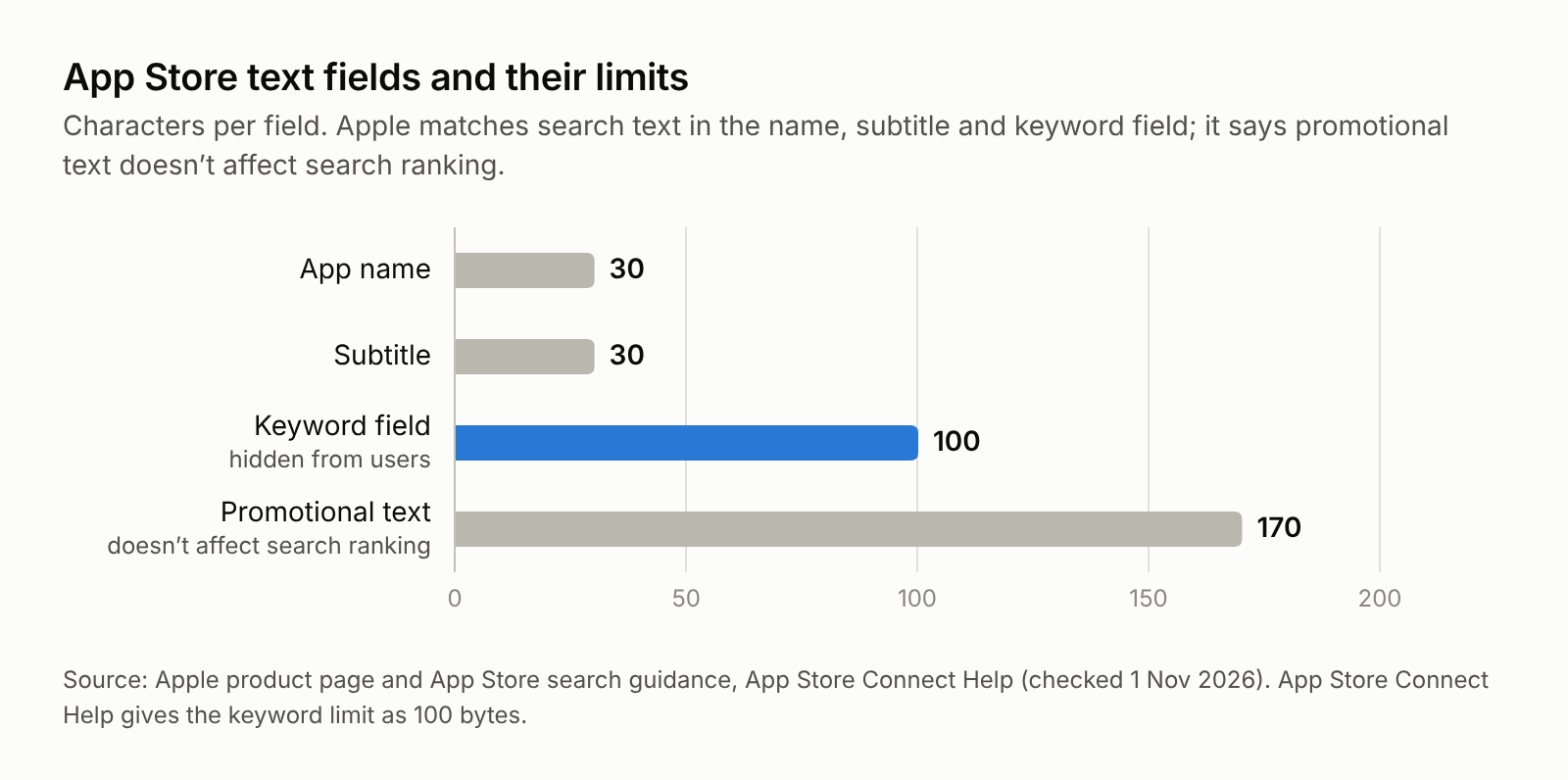
That is why a sound process puts the most important phrase in the name, a readable phrase in the subtitle, and everything else in the keyword field, with no word repeated across the three. Apple doesn't document how it combines words from different fields into one search phrase, so don't build a plan on assumptions about that. Stick to what is documented: use every word once, in the field where it fits best.
Seven ways to waste the 100 characters
- Spaces after commas.
photo, editor, filteruses two more characters thanphoto,editor,filter. Apple says to separate terms with commas and no spaces. - Plurals. If you have
recipe, addingrecipesspends 7 characters on a word Apple treats as a duplicate. - Words already in the name, subtitle or category. If your subtitle says "Budget Planner", typing
budgetagain repeats it. - Your own app or company name. App Store Connect Help says your app is already searchable by both.
- Generic words. Apple lists "app", "game" and category names as words to avoid.
- Filler words. Apple names "the" and "to" as words that add no value.
- Special characters. Apple says characters such as # and @ don't carry extra weight when people search, unless they are part of your brand.
Two more mistakes are not just wasted space but a rejection risk: competitor names and irrelevant popular words. Apple lists both among improper keywords. An irrelevant word also won't keep users, even if it ranks.
A step-by-step method
Step 1: Collect candidates. List the words people would type to find an app like yours. Good sources:
- your own description
- your competitors' names and subtitles (to understand the market, never to copy their brand names)
- App Store search suggestions as you type a word
Step 2: Score them. For each candidate, check three things:
- whether people search for it (a popularity signal, such as how early the store suggests it as you type)
- how strong the apps ranking for it are (difficulty; see ASO keyword difficulty explained)
- whether it truly describes your app (relevance)
Drop anything that isn't relevant.
Step 3: Place the best phrase in the app name. For example, Brand: Habit Tracker, within 30 characters.
Step 4: Write a readable subtitle with the next most important words, without repeating any word from the name.
Step 5: Fill the keyword field.
- Start with the remaining words that score best per character.
- Remove anything that repeats a name, subtitle or category word, any plural of a word you already have, "app", filler words and competitor names.
- Join the terms with commas and no spaces.
- Stop at 100 characters.
Step 6: Check it.
- Count the characters, and confirm the length in App Store Connect.
- Look for duplicates across all three fields.
- Make sure every word is relevant.
Step 7: Track the result. After the update goes live, record where the app ranks for each target keyword, and compare week by week. Rankings move for many reasons, so look at the trend across several weeks rather than one day.
Example
Imagine a habit app called "Acme" (a placeholder name, not a real app) in the Health & Fitness category.
- Name:
Acme: Habit Tracker(19 characters) - Subtitle:
Daily Routine & Goal Planner(28 characters) - Keyword field:
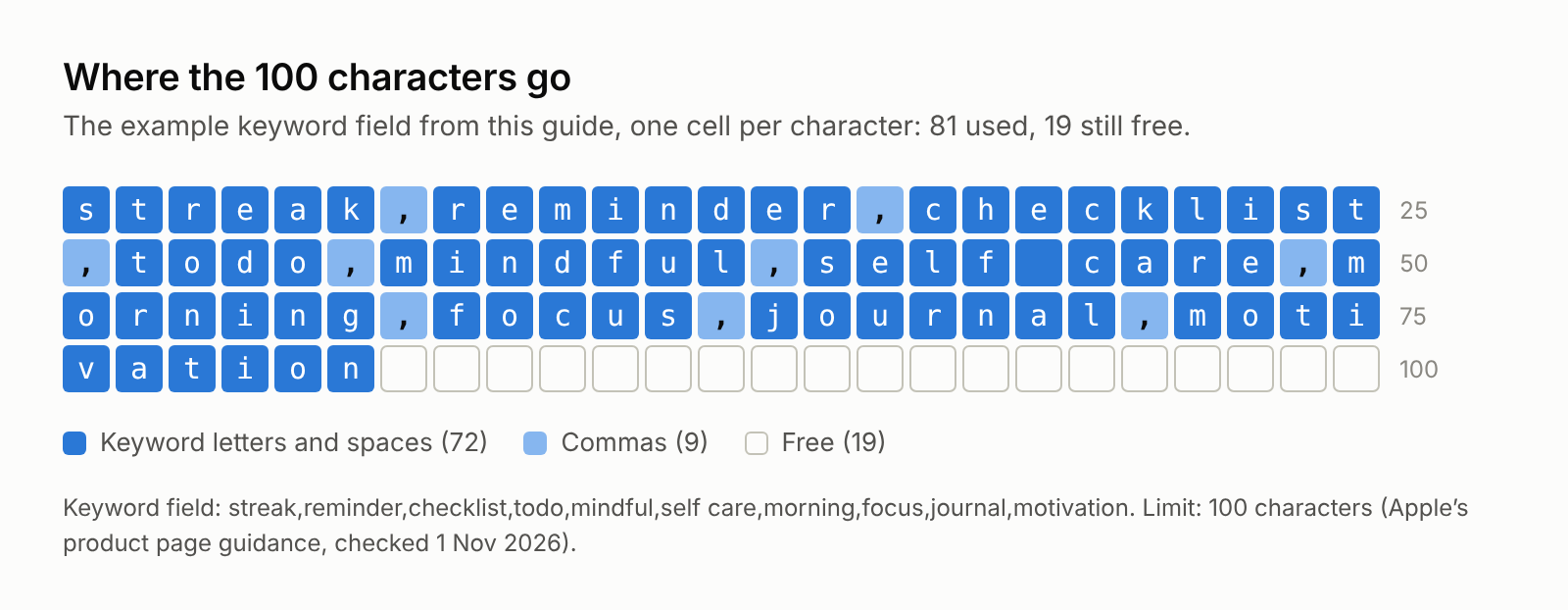
streak,reminder,checklist,todo,mindful,self care,morning,focus,journal,motivation(81 characters)
Notice what's missing: habit, tracker, daily, routine, goal and planner are already in the name or subtitle. There are no plurals, no "app", no category words such as "health" or "fitness", no filler words and no competitor names. That leaves 19 characters for more relevant terms, so go back to your scored list and add the best ones that fit.
How ASOClimb helps
The free keyword checker needs no signup. Paste your listing into its metadata counter and it counts each field against its limit and flags repeated words, singular and plural pairs, spaces the keyword field doesn't need, and other apps' brand names.
ASOClimb Wow Keywords goes further. You paste your app and pick countries; it scores candidate keywords and writes three listing variants, each with a title, subtitle and keyword field that fit these limits and skip repeated words, plurals of words already used and competitor brands. It runs on ASOClimb's servers, so you don't need your own AI account or API key. The Free plan includes one full Wow Keywords run a month for one app across up to 3 countries, and Pro adds more runs, all countries and weekly tracking. You can also start a run from an AI assistant such as Claude or ChatGPT through ASOClimb's MCP server.
ASOClimb's popularity, difficulty and opportunity scores are models built from public store data, not Apple's search volume, and we label them that way everywhere.
FAQ
How long can the App Store keyword field be? 100 characters in total, according to Apple's product page guidance. App Store Connect Help describes the same limit as 100 bytes, which can matter for accented letters and non-Latin scripts.
Should I put spaces after commas? No. Apple says to separate terms with commas and no spaces. Spaces are fine inside a phrase.
Should I repeat words from my app name in the keyword field? No. Apple says not to repeat words included in your app name, subtitle or category.
Can I use competitor names as keywords? No. Apple lists competing app names among improper keywords, and App Store Connect Help says names of other apps or companies aren't allowed.
Does promotional text help ranking? No. Apple says promotional text doesn't affect your app's search ranking.
Should keywords be different in each country? Apple recommends localizing keywords for each market you offer your app in.