
If your app is only optimized in English, people in other countries may see a listing that doesn't match what they type. Apple's product page guidance says to localize your description, keywords, previews and screenshots for each market, and that you can translate your app name and tailor your keywords to each market. This guide shows how to localize App Store keywords without guessing, with notes for Google Play. The Apple and Google documentation quoted here was checked on 1 November 2026.
How Apple handles keywords in each language
Before you choose words, it helps to know what Apple documents about localizations:
- Keywords are set per language. In App Store Connect Help, the Keywords property "can be localized". Apple's property reference marks the app name and subtitle as localized too.
- A new language doesn't copy your keywords. When you add a language, Apple says its properties default to the primary language's, "except for the description and keywords". You write those for each language yourself.
- Your primary language is the fallback. Apple describes the primary language as the default for your product page metadata when you don't provide localized metadata for a country or region.
- Localized keywords are searchable wherever the store supports that language. Apple's localization help gives an example: with English as the primary language and a French localization, "users can search for your app using localized keywords in all countries or regions where the App Store supports French".
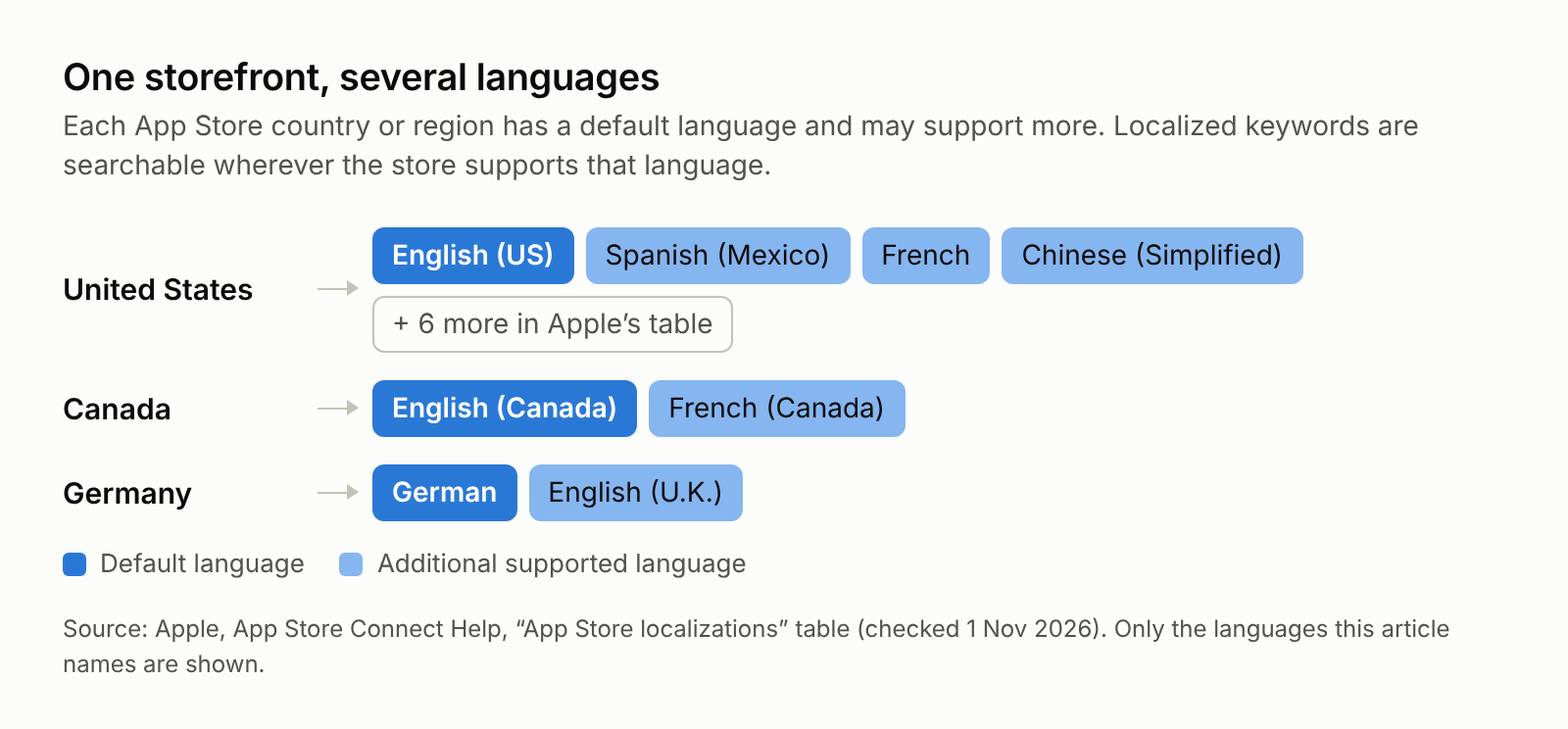
- Many storefronts support more than one language. Apple's App Store localizations table lists a default language and any additional supported languages for each country or region. The United States lists English (US) plus nine more, including Spanish (Mexico), French and Chinese (Simplified). Canada lists English (Canada) and French (Canada). Germany lists German and English (U.K.).
Put together, one localization can be searchable in several countries, and one storefront can support several of your localizations. Apple notes that the language each customer sees can depend on the App Store language for their location, their language setting, the languages you added and your primary language. It doesn't publish how those localizations are weighed in ranking, so check the result in each storefront instead of assuming it.
Why direct translation often misses
A dictionary translation of your English keyword is a starting point, not an answer. Three things go wrong:
- People search with different words. The everyday word may differ from the dictionary word, or people may use an English loanword.
- Compound words and spelling. Some languages join words. When we read the App Store's German search suggestions for "kalorien" on 1 November 2026, they included compounds such as "kalorienzähler kostenlos" and "kaloriendefizit" next to two-word phrases such as "kalorien tracker".
- Competition can differ by country. A term that is crowded in one storefront may be open in another, and the reverse.
The fix is simple: only keep a localized keyword if you can see evidence for it in that country's store. Search suggestions and real search results are that evidence.
Step 1: Pick the countries
Start with the countries where you already get downloads, or where your category is strong. Doing three countries well beats doing thirty badly. If you already track ranks, our guide to keyword rankings by country covers comparing them storefront by storefront.
Step 2: Find local seed words
For each country:
- Read the names and subtitles of the top apps in your niche in that storefront. Local competitors show the words that already work there.
- Translate your top 10 to 20 English keywords as candidates.
- Type each candidate into that country's App Store search and note the suggestions that appear. Our guide to App Store search suggestions explains how to read them. In the German storefront, "kalorien" brought up German phrases, which is the kind of signal you want.
Step 3: Check each candidate
For every candidate, ask:
- Does it appear in local search suggestions, or bring up relevant apps in local results? If not, drop it.
- How strong are the apps that rank? Many ratings and exact-match names mean it's harder.
- Is it relevant to your app? Never keep a term just because it's popular.
Step 4: Write the localized fields
The documented limits:
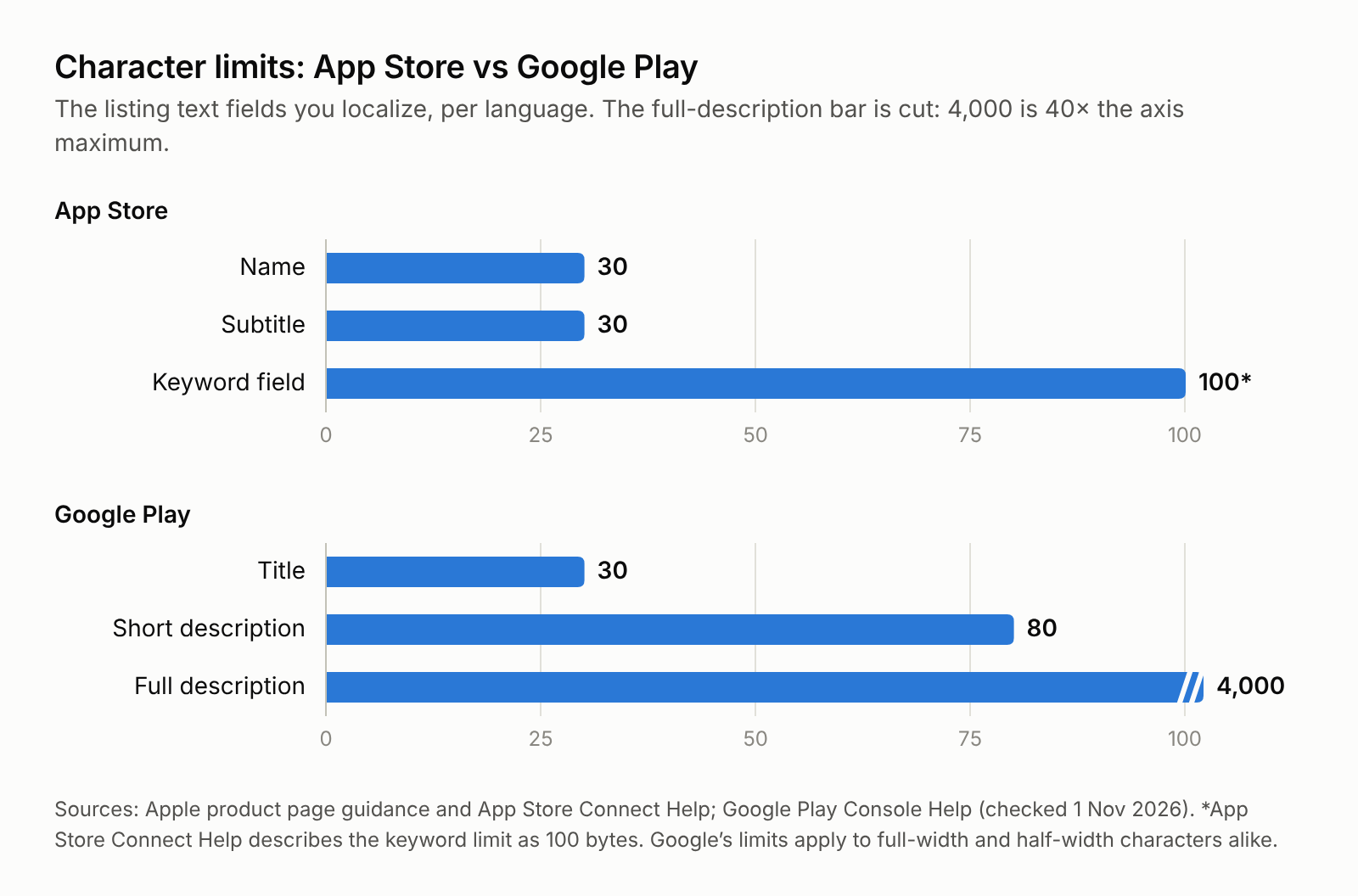
- App Store: name 30 characters, subtitle 30 characters, keyword field 100 (commas, no spaces). App Store Connect Help describes the keyword limit as 100 bytes rather than characters and doesn't say how they are counted. In languages with accents or non-Latin scripts, check what App Store Connect accepts.
- Google Play: title 30, short description 80, full description 4,000. Google's Play Console Help says these limits apply to both full-width and half-width characters.
Write the name and subtitle so a local reader understands them. Put the remaining local terms in the keyword field. The usual keyword-field rules apply in every language: no plurals of words you already have, no repeats of words in the name, subtitle or category, no "app", and no competitor names. Our guide to the App Store keyword field lists them all.
Google Play
On Google Play there is no keyword field. Use local terms naturally in the title, short description and full description. Google's Play Console Help warns that "repetitive or irrelevant keyword usage" in the app name, short description or full description "can create an unpleasant user experience and result in app suspension", so write for people first.
If you don't add your own translation, Google says Google Play shows your listing either as an automated Google Translate version or in your app's default language. Writing the local listing yourself is how you choose the words.
Step 5: Track each country separately
Rankings are per country, so track them per country. Record the ranks just before the update and compare them weekly afterwards. Some changes take time to show, so judge after several weeks, not one day.
Common mistakes when you localize App Store keywords
- Copying the English keyword field into every locale. It wastes the chance to target local words.
- Machine translation with no check. It can produce terms nobody searches.
- Forgetting the name and subtitle. Apple lets you localize both, and Apple's search guidance lists the title and subtitle among the text it matches.
- Too many countries at once. You can't learn what worked.
How ASOClimb helps
ASOClimb's public keyword pages show which apps we observed ranking for a keyword, with the date of each observation. ASOClimb Wow Keywords runs the process above for you, on our servers:
- Each country runs in its own language. It reads your listing and your competitors in that storefront, and the store's local suggestions expand them.
- It scores every candidate and leaves out terms that name a competitor's brand.
- It writes listing variants for each country that fit the store's limits.
- On Pro, a weekly report tracks the ranks of the keywords you applied.
You don't need your own AI account or API keys. The Free plan includes one full run a month for one app across up to 3 countries, and Pro unlocks more runs, all countries and weekly tracking.
Scores in ASOClimb are labelled models built from public store data, not store-reported search volumes.
FAQ
Does Apple let me localize App Store keywords? Yes. App Store Connect Help says the Keywords property can be localized, and Apple's product page guidance recommends tailoring keywords to each market.
Can one localization be searched in several countries? According to Apple, people can search with a localization's keywords in every country or region where the App Store supports that language. Apple's App Store localizations table lists the languages each storefront supports.
What do people see in a country I haven't localized for? Apple says that if no localization matches a person's language setting, the next most relevant localization is used, and elsewhere your metadata appears in your primary language.
Is Google Translate enough? Use it to get candidates, then keep only terms you can confirm in that country's store.
Do character limits change by language? On Google Play, Google says the limits apply to full-width and half-width characters alike. On the App Store, the name and subtitle are 30 characters each; the keyword field is 100 characters in Apple's product page guidance and 100 bytes in App Store Connect Help, so check non-Latin scripts in App Store Connect.
How many countries should I start with? Pick the few where you already get downloads or where your category is strong, then expand.